BrickView
Introduction
BrickView is a Windows application designed to view LEGO® set information from the Brickset.com website.
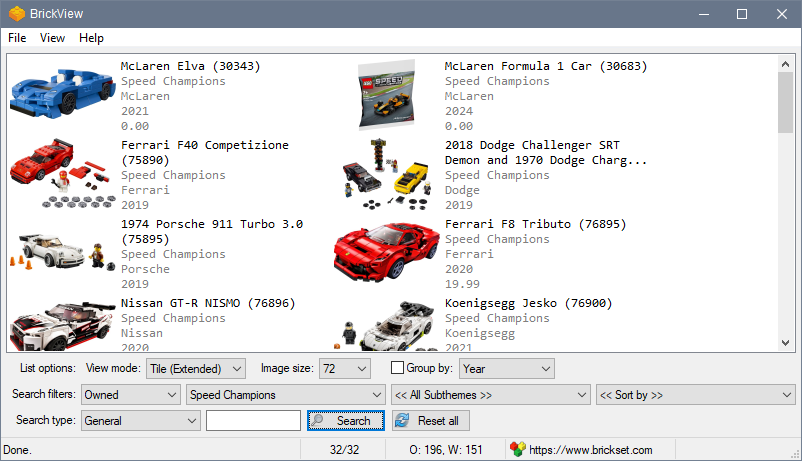
Installation
Download the BrickView.zip file and extract its contents to a new folder. Double-click on BrickView.exe to start the program.
Notes
You must have an account on Brickset.com for this application to work. Sign up here.
Tested on Windows 10/11 64-bit. Probably works, but not tested, on Windows Vista/7/8.
Since BrickView has to download the set images to display them, the first time a set shows up in a search, it will be somewhat slow to load. However, images are cached, and subsequent searches that include that set should display much more quickly. If the image cache folder {appdir}\cache gets too large, feel free to delete all or some of the image folders within it, and BrickView will re-download the images as it needs them.
As noted below, the display of the results can vary with different combinations of View mode, Image size, & Group by options. This is the result of the standard Windows listview capabilities and limitations. Get into the habit of setting the different options before clicking the
 button.
Operation
In the menu at the top of the window, go to View > Options, and enter in your Brickset.com credentials. Alternately, you can press the F4 key to bring up the Options panel.
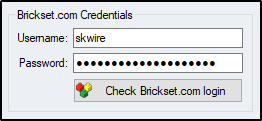
Click the
 button to verify your credentials.
 If desired, change any other options in the General section.
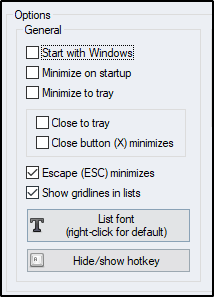
Click the
 button when finished.
 The main interface is made up of a listview and several GUI controls at the bottom of the window, which allow you to change various filter and search types to refine your search. You can also set additional options here which affect how your results are displayed. You must set at least one filter or enter a search term before clicking the
button. There are three lines of options:List options include:
View mode offers five different viewing modes: Details, Icons, List, Tile, & Tile (extended)

Image size determines how large, in pixels, the images in the listview will display.

Group by can be enabled with the checkbox and contains four options: Theme, Subtheme, Theme group, and Year. This enables a special "group view" in the list, which can be helpful. For example, you can use it view all sets of a given theme grouped by that theme's subthemes.

Note
While you can change the list options after doing a search, certain combinations work best when set before initiating a search. If the list results look strange after changing them, simply click the Search button again and see if the newly displayed results look better. Certain view modes work best with larger image sizes, i.e., the Tile and Tile (extended) mode work best with with the 64, 72, & 96 image size options. Experiment to find what you like best.Search filters include:

The << All Sets >> drop-down offers << All Sets >>, Owned, and Wanted. If you want to view your owned collection, simply set this drop-down to Owned, set the Search type to General, leave the search field blank, and click the
button.The << All Themes >> drop-down list auto-populates on startup. You can choose from any of the available themes can click the
button to see all sets for a given them. Furthermore, you can combine any of these filters to refine your search. For example, if you wanted to see which "Speed Champions" sets you own, set the << All Sets >> drop-down to Owned and the << All Themes >> drop-down to "Speed Champions", leave the search field blank, and click the button.The << All Subthemes >> drop-down is dynamically changed as you select themes from the << All Themes >> drop-down. As above, you can set this drop-down to refine searches. Note that not all themes contain subthemes.
The << Sort by >> drop-down contains various options you can use to sort how your search results display in the list. Keep in mind that this option works best when the listview is in Details mode.
Search type options include:

General is just that, a general search. You can enter just about anything in this field, click the Search button and see what results are returned. You can also set the Search filters fields to further refine your search. For example, you could set the Themes drop-down to "Speed Champions" and then search for "Porsche" and it would return only Speed Champions sets with "Porsche" in their name.
Set number lets you search for a single set if you know the set number. You can add, or omit, the -1. However, if you know the set has a second variant, you must manually add the -2 to the set number.
Tag allows you search for sets tagged with a certain tag on Brickset's website. Since there doesn't appear to be a way to retrieve all tags via the Brickset API, this option is less useful unless you know the exact tag you're searching for.
Click the
 button to reset the filters and clear the search field. This option does not affect the List options such as View mode, Image size, & Group by. It also does not change the Search type drop-down.